Use the Device Scout Configuration tool
The Device Scout Configuration tool runs on the server where Device Scout is installed. Use it to test the connection to HP Insights, set up a proxy server, and apply changes you made in the web console without waiting for the next check-in. Schedules and host addresses are changed in the web console instead. See Configure Device Scout.
Before you begin
- You're signed in to the server where Device Scout is installed, with administrator rights.
- To use a proxy server, you have its address, port, and any username and password it needs.
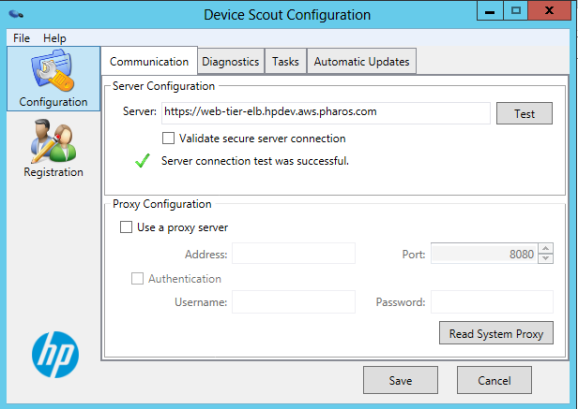
To open the tool, search for Device Scout Configuration on the Windows Start menu. Server and proxy settings are on the Communication tab, under Configuration.
Test the connection to the server
Run the test
On the Communication tab, select Test next to Server. If the test succeeds, a green check mark and Server connection test was successful appear below the field.
Save and restart the service
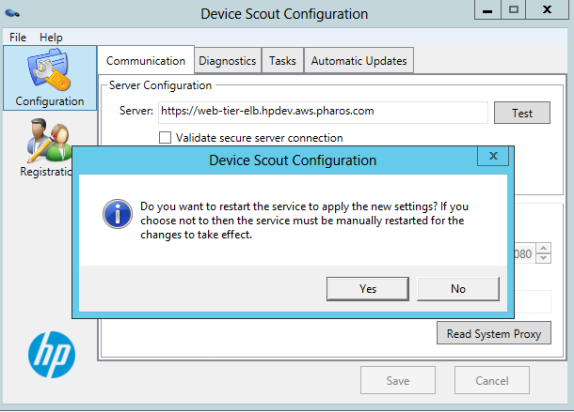
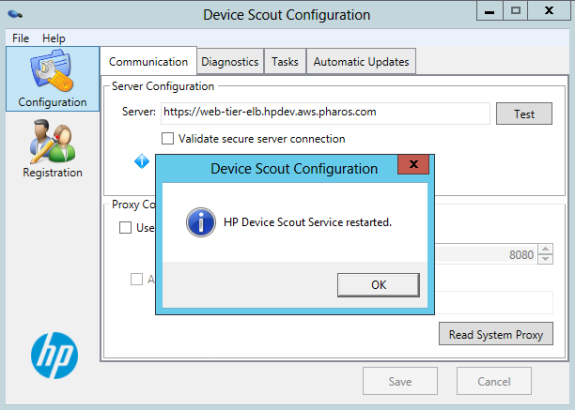
If you changed anything, select Save. When you're asked to restart, select Yes, then select OK when the message says the service has restarted.
If the test fails, check that the server can reach the internet over HTTPS, and whether it needs a proxy server.
Use a proxy server
If the server reaches the internet through a proxy server, set it up on the Communication tab, under Proxy Configuration.
Turn on the proxy
Select Use a proxy server. To copy the proxy settings from Windows, select Read System Proxy. Otherwise, enter them yourself.
Enter the proxy details
| Setting | What to enter |
|---|---|
| Address | The proxy server's address. |
| Port | The proxy server's port. The default is 8080. |
| Authentication | Select it if the proxy needs a sign-in, then enter the Username and Password. Basic authentication (a fixed username and password) and NTLM authentication (an Active Directory username and password) are supported. |
Test and save
Select Test to check the connection through the proxy, then select Save and restart the service when you're asked.
Apply web console changes now
A Device Scout picks up changes you make in the web console at its next configuration check, every 2 hours by default. To apply them straight away, go to the Tasks tab and select Refresh Tasks.